Kindle Firmware Updates: What New Features Mean for UK Users

Kindle software arrives quietly. There is no launch event and no countdown, just a restart you half-noticed and a home screen that looks slightly different from the one you left. For most UK owners that is fine. Every so often, though, an update moves a setting you relied on, retires a file format, or quietly turns something back on. Knowing where to look takes the sting out of it.
Firmware is the software built into the device itself. Amazon pushes it over Wi-Fi, usually in batches, so two people with the same model can be weeks apart. Within any given release you tend to get four things:
The batches matter. Keep your Kindle in Airplane Mode for months and you will eventually fall far enough behind that a fix or a feature does not reach you. You do not need to chase every release, but connecting to Wi-Fi every few weeks and letting it do its thing is worth the small effort.
On most models it is Settings > Device Options > Advanced Options > Device Info, though the wording shifts between generations. If "Update Your Kindle" is greyed out, you are already on the latest version. Note the number down before you call support — it saves a round of questions.
This is the part most people skip, and it is the part that changes most often. Under Settings > Device Options > Advanced Options > Privacy you will usually find toggles for device usage data, app usage data and interest-based ads.
Turning off interest-based ads does not remove special offers from a discounted Kindle. What it does is stop the ads being tailored to you, so you get generic ones instead. If you want to go further, your Amazon.co.uk account has its own advertising and data preferences that sit outside the device settings entirely.
The trade-off is worth understanding. Whispersync is what carries your reading position, highlights and notes between your Kindle, your phone and any other device. Switch syncing off for privacy and you lose that convenience — you will be hunting for your place again on every device. For most people, keeping sync on while trimming the advertising and usage-data toggles is the sensible middle.
If there are child profiles or a shared household Kindle in the house, check those settings after a major update too. Age filters and purchase approvals are easy to forget about until a nine-year-old has bought something.
Amazon has spent the last few years gently moving people away from MOBI. Send to Kindle — through the website or the desktop and mobile apps — now expects EPUB, PDF or a Word document. Send an EPUB and it converts, syncs and behaves much like a bought book. That is the easiest route for anything you have downloaded from a public-domain site or bought elsewhere.
The USB route still works, and it is handy for large PDFs or a stack of files at once. Drag them into the documents folder and they appear in your library. Just remember that USB-loaded books do not sync: they live on that one device and will not show up in the Kindle app. Convert awkward formats with Calibre first; it takes a couple of clicks and saves a lot of frustration later.
As for purchased books, keep them in your Amazon account rather than treating local copies as a backup. Amazon has been winding down the older "download and transfer via USB" option, and the cloud library remains the reliable copy.
The UK's 3G networks have been switched off, so a 3G Kindle can no longer fetch books over mobile data. Wi-Fi still works, and for most people that is enough — but if you bought the 3G model specifically for travel, plan around hotel and café Wi-Fi instead.
Older devices also drop out of feature releases first. They typically keep working with the store and cloud library, and security updates tend to continue for a while, but new interface ideas rarely arrive. That is not a reason to replace a Kindle that reads perfectly well. It is a reason to stop waiting for a feature your model will never get.
Most update problems are temporary. The device indexes your library in the background afterwards, which can drain the battery and slow page turns
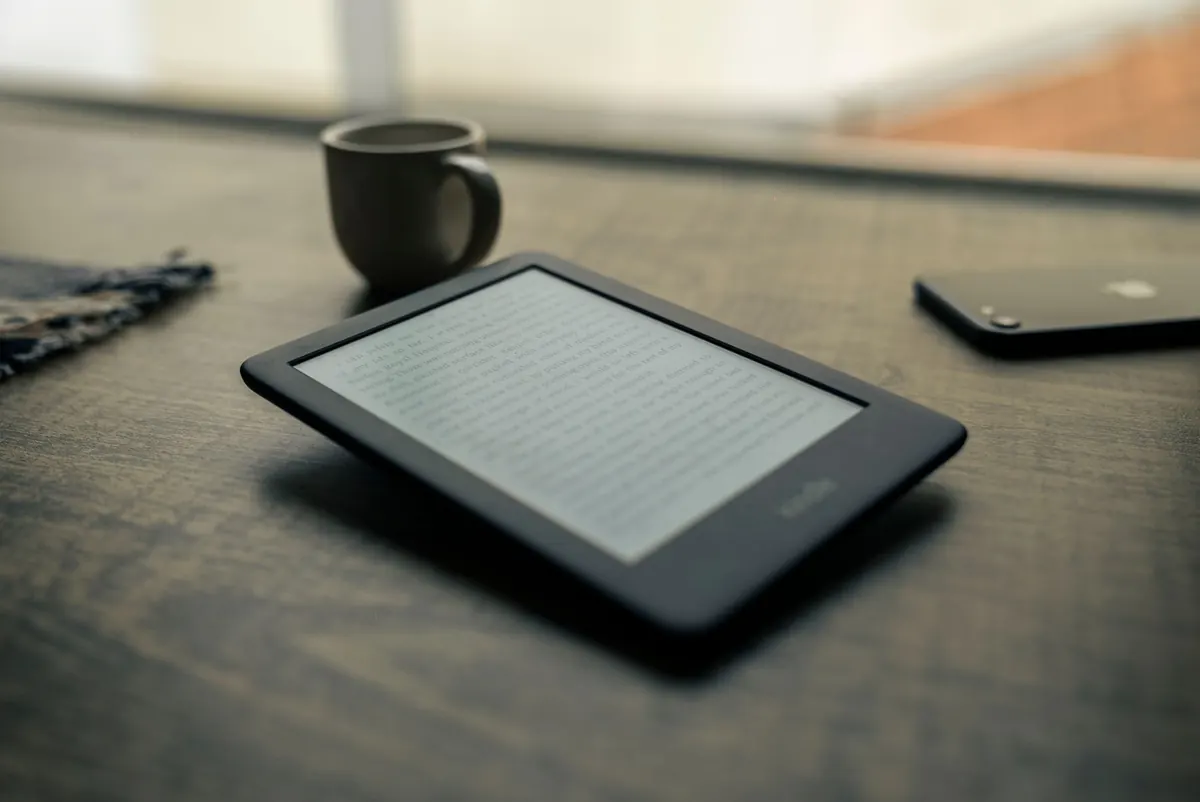
Photo: yeiferr / Pixabay
Previous Post
Best Kindle Covers and Sleeves for UK Commuters
Next Post
Kindle Paperwhite Review for UK Readers: Is It Worth the Upgrade?