15 Things to Check Before Buying a Refurbished Kindle

A refurbished Kindle is one of the better second-hand buys around. The hardware ages slowly, the software keeps getting updates, and a well-checked Paperwhite reads exactly like a new one. The trouble is the word itself. "Refurbished" can mean a device stripped down, tested and re-sealed by Amazon — or a Kindle wiped with a damp cloth and listed on a marketplace. The difference matters most after the money has changed hands, so here is what to check first.
1. Find out who did the work. Amazon Certified Refurbished devices are inspected, tested and sold with a guarantee directly by Amazon, which is the safest tier. A specialist repair shop that replaces batteries and screens is the next best thing, particularly if it publishes what it tests. A private seller saying "refurbished" usually means "wiped and working". None of these are automatically bad, but they carry very different levels of risk, and the price should reflect that.
2. Ask what the condition grade actually covers. If a listing says "Grade A" or "excellent condition", ask whether that covers the screen, the battery and the casing — or just the casing. Grades are seller-defined and not standardised, so get the answer in a message rather than trusting the label. If the seller dodges the question, that tells you plenty.
Kindles do not report battery health the way phones do. There is no capacity percentage to screenshot, so you are judging behaviour and honesty.
3. Ask how many days of reading they get per charge. A specific answer is a good sign; "it holds charge fine" is not. Two habits age a Kindle battery faster than anything else: leaving it plugged in permanently for years, and leaving it completely flat in a drawer. Ask how it has been stored and charged.
4. Check the charging port. Older models use micro-USB, newer ones USB-C. A port that needs the cable held at an angle is on its way out, and replacing it is fiddly at best. If the seller mentions a loose connection, walk away.
5. Test the battery yourself in the first few days. Charge it fully, read normally, and watch how it drops. If it falls from full to empty across a couple of days of light reading, return it while you still can. That is exactly what the returns window is for.
6. Look at the front light in a dark room. Turn the brightness to roughly a third and check for bright spots, cloudy patches or a colour cast — blue at the top, yellow at the bottom. Ask for a photo of a blank page taken at night, not just a photo of the home screen in daylight.
7. Watch for pressure marks. Grey smudges under the glass, usually near the middle or the edges, come from something pressing on the screen inside a bag. They often vanish in bright light with the front light off, which is why sellers genuinely miss them. A blank page with the light on in a dim room shows them up.
8. Ask about scratches and screen replacements. A replaced panel can look fine on a home screen but often has worse light distribution than the original. A hairline scratch across the reading area is far more irritating than a scuff on the bezel, so ask where any marks are.
9. Treat waterproofing as a bonus, not a guarantee. If a seller has opened the case to swap a battery, do not assume the seals were redone to the original standard. Water resistance on a refurbished device is a nice extra, never something to rely on at the beach.
10. Get the serial number and confirm the exact model. It is listed in Settings, under Device Options or Device Info depending on the generation. Cross-check it against the listing photos. Sellers regularly describe a tenth-generation Paperwhite as an eleventh-generation one, and the generation decides the screen resolution, the front light, whether you get USB-C, and how long software updates will keep arriving.
11. Confirm it is deregistered. A Kindle still attached to someone else's Amazon account cannot be registered to yours, which makes it useless. Ask the seller to deregister it before posting and to send a photo of the setup screen. If it arrives locked to their account, you will be chasing a stranger for a favour.
12. Check for Special Offers and the storage variant. Ad-supported Kindles show adverts on the lock screen, and removing them costs extra if they bother you. Also confirm whether it is the smaller or larger storage model, and whether it is Wi-Fi only. Older cellular models depend on networks that are being wound down, so treat mobile data as a bonus rather than a feature.
13. Get the warranty terms in writing. Who honours it — Amazon, the shop, or the seller personally? How long does it last, and what is excluded? A guarantee that turns out to be "14 days, no faults caused by use" is worth very little. Amazon's Renewed programme does include a guarantee, but check the current terms on the listing, because they change.
14. Know the returns window before you buy. Buying online from a business gives you a 14-day right to cancel from the day the device arrives, under the Consumer Contracts Regulations, and you then have 14 days to send
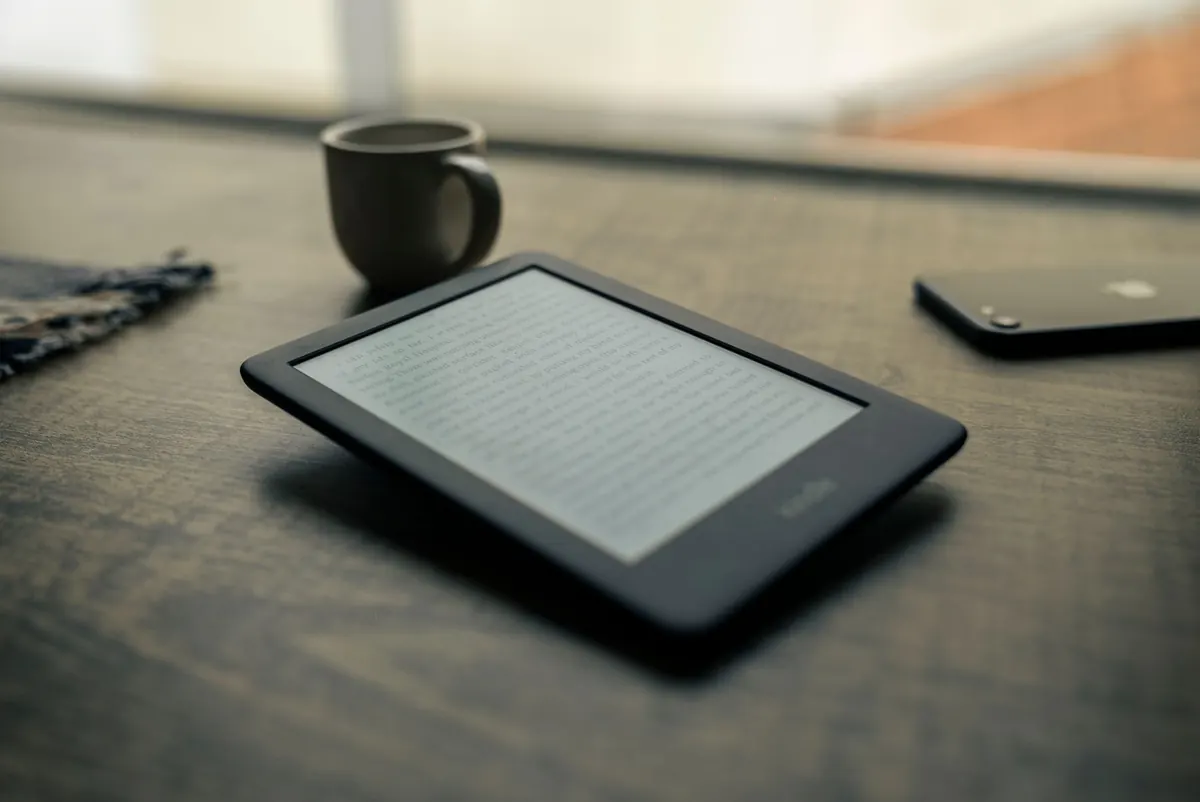
Photo: Pexels / Pixabay
Previous Post
Kindle Screen Technologies Explained: Frontlight, Warm Light and Glare
Next Post
Kindle vs Kobo: Which E-Reader Is Best for UK Readers?